Delete a saved credit card
This guide shows you how to delete a credit card saved on your YorkHost account from the Client Area.
Access your saved cards
- Log in to your Client Area:
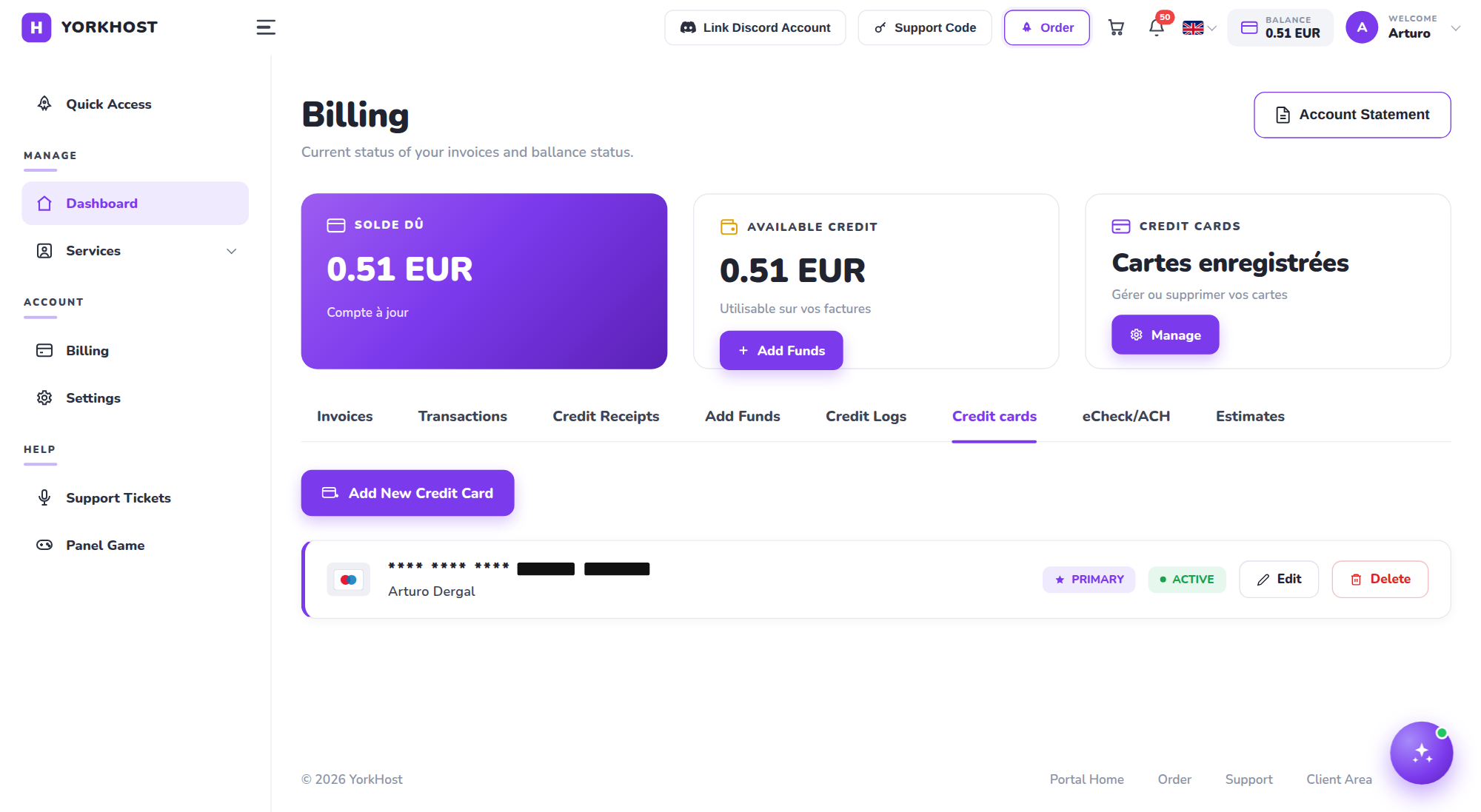
- In the left menu, under the ACCOUNT section, click Billing
- On the Billing page, click the Credit cards tab
- You can also click the Manage button on the Credit Cards panel at the top right, which takes you to the same place
Delete the card
- In the list of your saved cards, locate the card you want to remove
- The last 4 digits and the cardholder name help you identify it
- Click the red Delete button on the right of the card
- Confirm the deletion in the window that appears
The card is immediately removed from your account and will no longer be used for automatic payments.
Good to know
- Primary card (PRIMARY): if you delete your primary card while you have active services with automatic renewal, remember to save another card to avoid a payment failure at the next renewal.
- Add a new card: use the Add New Credit Card button on the same page.
- Edit a card: the Edit button lets you update a card's details (for example its expiry date) without deleting it.
tip
If you simply want to prevent an automatic charge, you can also disable the automatic renewal of the service concerned instead of deleting your card.
Need help?
If you run into an issue while deleting your card, open a ticket from your Client Area:
- clients.yorkhost.fr → Support Tickets